Frequently Asked Questions About Mobile Proxies | FAQ
Here you can find answers to common questions about mobile proxies, tariffs, payment, setup and proxy usage.
Getting started
How to register on Mobihub?
Registration on Mobihub takes place in several steps and requires verification via Telegram and email.
🔹 Step-by-step registration guide
-
Go to the Mobihub registration page.
-
Join our Telegram group.
-
Start the Telegram bot and send the /start command.
-
Wait for a response from the bot.
⚠️ Important: if you started the bot before joining the Telegram group, you must send the /start command again after joining the group.
-
Fill out the registration form:
- enter a valid email address;
- create a password;
- complete all required fields.
-
Click the "Verify" button.
-
After successful verification, click "Register".
-
An activation email will be sent to your inbox — follow the link to complete registration.
📧 Important: use a valid email address — without confirmation, the account will not be activated. If you don’t see the email, check your Spam folder.
What to do after registration?
After successful registration, you need to install the application and connect your device.
🔹 App installation and device connection
- Install the app from Google Play or download the APK from the official website.
- If installing the APK, allow installation from unknown sources in your device settings.
- Launch the application and sign in.
- After launch, the device will automatically appear in your Mobihub profile.
- In your dashboard, create a proxy by selecting the connected device.
✅ Done — the service is fully ready for use.
🎥 Video guides
You can watch a detailed video guide demonstrating all the steps:
- ▶️ YouTube: Watch video
- ▶️ RuTube: Watch video
- ▶️ VK Video: Watch video
How to download the Mobihub app?
Mobihub is needed to create and manage mobile proxies. After installing, you can easily configure proxies and manage connections.
📌 Why install Mobihub?
- ✔️ Easy proxy setup – just a few steps.
- ✔️ One-click IP change – automatic update tools.
- ✔️ Remote management – control connection from your account.
📌 How to download and install
- Go to the official Mobihub website or app store:
- 📥 Download for Android
- 📥 Download APK (if Play Store is unavailable)
- If using APK, allow installation from unknown sources:
Settings → Security → Allow app installation
- Open the file and follow instructions.
- Launch the app and log in.
⚠️ Important! Use only official sources and keep the app updated — stability and new features depend on it.
✅ Summary: After downloading Mobihub, you’ll have a convenient tool for mobile proxies. Installation takes just a few minutes, and your device will be ready to use.
Connecting a New Device
You can add a new device to your proxy in just a few simple steps.
📌 How to connect
- Install the app from Google Play or download the APK from the official website.
- If installing the APK, allow installation from unknown sources in your device settings.
- Open the app and sign in to your account.
- Tap the Start button to connect the device.
💡 Helpful tips
- Make sure your internet connection is stable (Wi-Fi or mobile).
- Allow the app to run in the background.
- Keep the app updated to the latest version.
✅ Summary: Connecting a new device takes only a few minutes. Once logged in, it will automatically appear in your personal account.
System Requirements
- Minimum Android version: 9
- Root: not required
- RAM: 2 GB+
- Processor: ARM Cortex-A55 or better
✅ Recommended Phones
🔥 Best options
- TECNO Spark 30 5G — very stable, excellent for Mobihub
- Realme Note 50 — works perfectly, best budget option
- Xiaomi Redmi Note 10S — stable connection and background performance
⚠️ Not recommended
- Samsung S24 FE — unstable
- Oppo A3s — background issues and digital assistant problems
✅ Summary: For stable Mobihub performance, use modern phones with Android 13+ and proper power settings.
Do I need root
No. Mobihub runs on a regular Android device without root: the app toggles airplane mode itself, either through the voice assistant or through a MacroDroid macro.
🔹 What works without root
- ✔️ Changing the IP by hand, via the API link, on a schedule and from the Telegram bot
- ✔️ Autostart of the proxy when the phone boots
- ✔️ Unique IP, SmartRelay, limits on traffic, speed and connections
🔹 What root would not give you
- Proxy speed does not depend on root — the network and the signal define it.
- The pool of IP addresses belongs to the carrier, not to the phone.
⚠️ Rooting voids the warranty, breaks some banking apps and Google Pay, and can brick the device. You do not need it for Mobihub.
✅ In short: any Android 9 or newer works as it is — install the app, sign in, create a proxy.
SIM card and carrier
A proxy hands out the same IP the carrier gave the phone. So the SIM defines both the pool of addresses and whether the IP changes at all.
🔹 What to check
- IP rotation. Toggle airplane mode a few times and watch the address on the IP check page. Some carriers and plans pin the address to the subscriber, and it never changes — such a SIM will not work for a proxy.
- Data plan. Both inbound and outbound traffic goes through the proxy, so usage is about twice what you are used to. Be careful with plans that only make social networks unlimited.
- Signal. LTE or 5G with a solid signal means speed and stability. 3G works, but noticeably slower.
- Tethering limits. A ban on tethering does not affect a proxy: to the carrier the traffic looks like ordinary browsing from the phone.
ℹ️ With several phones, take SIM cards from different carriers — that gives you addresses from more subnets.
One proxy per device
One phone runs one proxy. The phone reaches the internet over a single active mobile network and has a single external IP, so a second proxy on the same device would simply repeat the first one.
🔹 Two SIM cards do not give a second proxy
Even with two SIM cards, only one of them carries data at a time. A second independent address needs a second phone with its own SIM card and its own subscription.
🔹 Connections, on the other hand, can be many
A single proxy can hand out several connections, each with its own credentials, limits and expiry date. They share the external IP and differ only in access and restrictions.
✅ In short: another IP means another phone. Separate access for different tasks is what connections are for.
How to Set Up Proxy on Xiaomi Devices
On some Xiaomi devices, changing IP via Mobihub may not work correctly due to background activity restrictions. To ensure stable proxy operation, follow these steps.
🔹 Step 1: Enable Mobihub Auto-Start
Settings → Apps → Permissions → Auto-start in background- Enable it for Mobihub so the app can run after reboot
🔹 Step 2: Check Other Permissions
Settings → Apps → All Apps → Mobihub → Other Permissions- Enable all checkboxes to allow full background activity and correct IP switching
- The most important ones are "Display pop-up windows while running in the background" and "Show on Lock screen" — without them the phone may fail to leave airplane mode while the screen is locked
🔹 Step 3: Remove Battery Restrictions
Settings → Apps → All Apps → Mobihub → Battery saver- Select "No restrictions", otherwise the system may stop the app in the background, including during an IP change
- Also turn off the global
Settings → Battery → Battery savermode
🔹 Step 4: Lock Mobihub in Recent Apps
- Open the recent apps list, long-press the Mobihub card and tap the lock icon
- This keeps the app from being closed by "Clear all"
🔹 Step 5: Additional Useful Settings
See screenshots for quick access to background and auto-start settings:
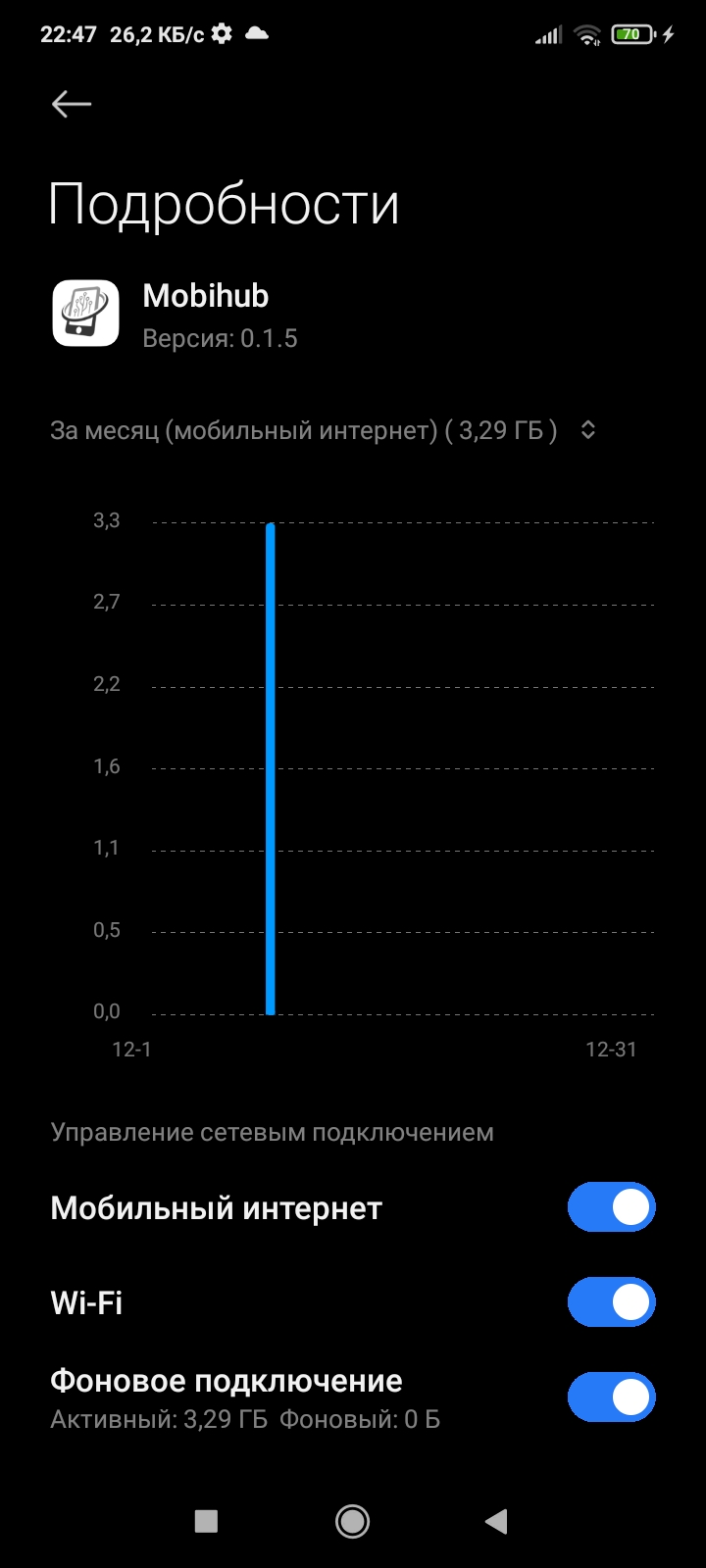
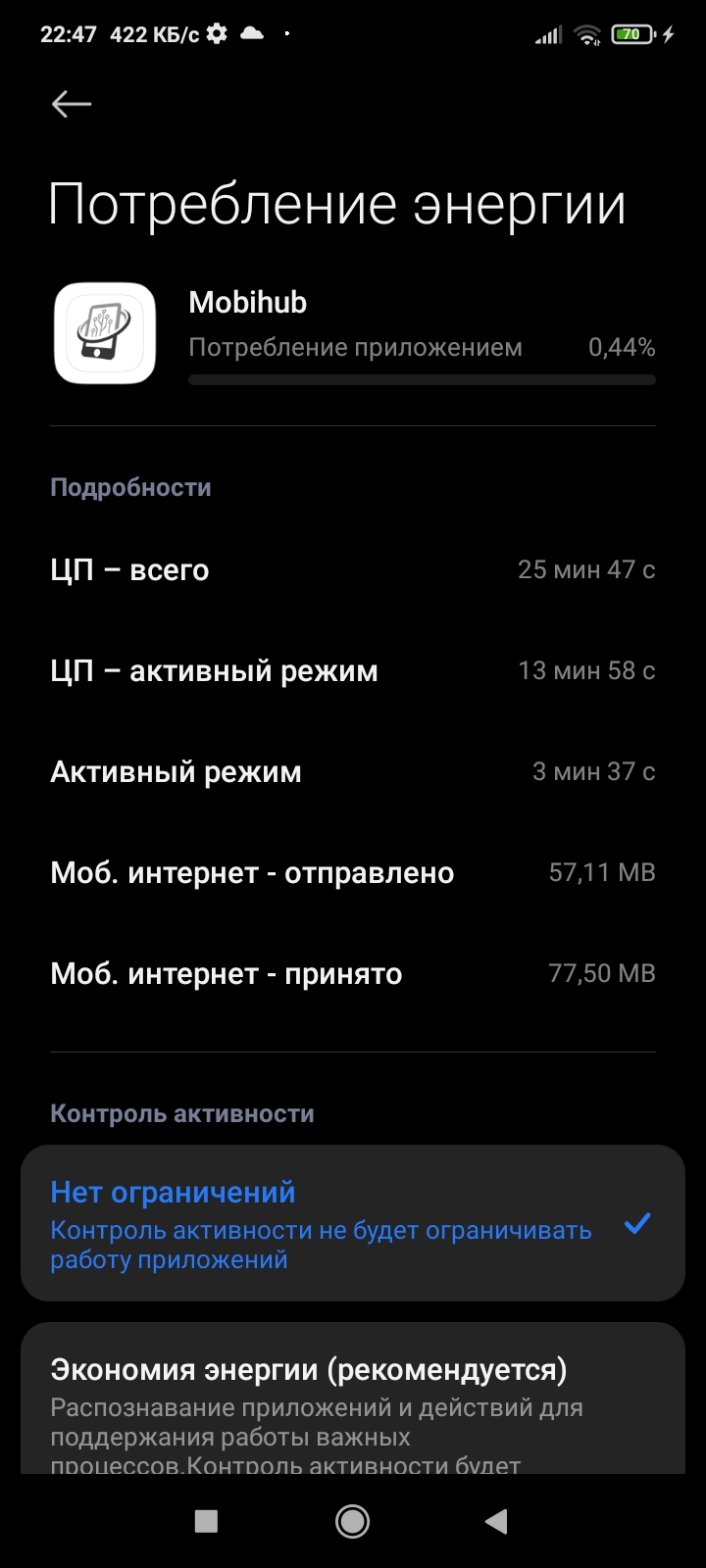
✅ Summary: After enabling auto-start, all permissions and removing battery restrictions, Mobihub will work properly on Xiaomi devices, providing stable IP switching and background proxy functionality.
Proxy Autostart
Autostart allows the proxy to automatically activate when the device starts.
📌 Why it’s useful
- ✔️ Proxy is always active.
- ✔️ Saves time.
- ✔️ Ensures stable operation.
📌 How to enable
- Open the proxy settings.
- Find the "Autostart" option.
- Turn on the toggle and save.
💡 Recommendations
- Allow autostart in the system settings.
- Disable battery optimization for the app.
- Check background activity settings.
✅ Summary: Autostart makes using the proxy easier: after reboot, the connection activates automatically.
How to Add Mobihub to iPhone Home Screen
You can create a Mobihub shortcut on your iPhone home screen — it opens the website like a standalone app.
📌 Benefits
- ✔️ Quick access — opens like a real app
- ✔️ Convenience — icon on the Home screen
- ✔️ Works without App Store — no official app yet
📌 How to add a shortcut
- Update iOS to version 16.4+
- Open the Mobihub website in your browser
- Tap the Share button (square with arrow)
- Select Add to Home Screen
- Tap Add
⚠️ This is not an app but a web shortcut: it opens the website in the browser without the address bar.
✅ Summary: Adding a shortcut gives you fast and convenient access to Mobihub, just like a real app!
Proxies and connections
How to Use Proxy in Mobihub?
After setting up and launching Mobihub, you can use the proxy for secure internet access, IP switching, and data protection.
📌 Why use a proxy?
- ✔️ Hide your real IP – browse anonymously.
- ✔️ Access regional content – connect to servers in different countries.
- ✔️ Secure connection – extra protection from blocks and tracking.
📌 How to start using the proxy
- Install and set up the Mobihub app.
- If not installed, download it from the app page.
- Create a proxy:
- Go to your profile, select your device, and configure the proxy.
- Copy connection details:
- IP address, port, and login/password if required.
- Configure the proxy in your device or app:
- Enable proxy in network settings and enter the details.
- Check the connection via an IP check website.
📌 Additional features
- IP switching – easily switch via voice assistant or MacroDroid.
- Choose the nearest server – for maximum speed.
- Allowed IP list – restrict access to trusted addresses.
✅ Summary: Using Mobihub proxy is a convenient and secure way to switch IPs and protect your connection. Manage connections and change IP with one click!
Unique IP for Proxy
The Unique IP feature automatically assigns a new IP address every time the connection is refreshed, helping you avoid reusing the same IP.
🔹 How it works
- The device switches to airplane mode.
- After reconnecting, the system checks the newly assigned IP.
- If the IP matches the previous one, the process repeats.
- The maximum number of attempts can be configured.
✅ What you get
- Automatic IP rotation without manual actions.
- Reduced risk of receiving the same IP again.
- More stable and predictable proxy behavior.
- Ideal for automation and long-running tasks.
✅ Summary: Every reconnection results in a fresh IP address, making proxy usage easier and more reliable.
How to use a proxy with different protocols?
Mobihub supports two protocols: SOCKS5 and HTTP/HTTPS.
🔹 SOCKS5
A universal protocol — works with any traffic type (HTTP, HTTPS, UDP).
curl
curl --socks5-hostname user:pass@host:port https://example.com
Python
proxies = {'https': 'socks5://user:pass@host:port'}
requests.get('https://example.com', proxies=proxies)
🔹 HTTP/HTTPS
Suitable for browser and web traffic.
curl
curl -x http://user:pass@host:port https://example.com
Python
proxies = {'https': 'http://user:pass@host:port'}
requests.get('https://example.com', proxies=proxies)
💡 Which protocol to choose?
- ✔️ SOCKS5 — universal choice, works everywhere including UDP
- ✔️ HTTP — use if the app doesn't support SOCKS5
📌 Where to find credentials?
Host, port, login and password are available on your proxy page in the personal account.
Proxy connections
A proxy is the phone and its IP. A connection is the way in: host, port, login and password or a list of allowed IPs.
🔹 What each connection can have
- ✔️ Its own login and password, or its own list of allowed IPs
- ✔️ A traffic limit with a reset period — daily, monthly or for the whole term
- ✔️ A speed cap, within the limit of your plan
- ✔️ A maximum number of simultaneous connections
- ✔️ A date until which it stays active
- ✔️ SmartRelay, on the Professional plan
🔹 When this helps
- Different projects or teammates: everyone gets their own access, which you can switch off without touching the rest.
- Renting the proxy out: the client gets a connection with its own limit and expiry date.
ℹ️ All connections of one proxy share the same external IP — they share one phone. How many connections you get depends on the plan.
Allowed IP list
The allowed IP list limits access to the proxy to trusted IP addresses or network ranges only.
🔹 How it works
- You specify allowed IP addresses or subnets in the proxy settings.
- Each incoming connection is checked against the list.
- If the IP is not on the list, the connection is rejected.
🧩 Supported formats
- Single IP address (e.g.
192.168.1.10) - Subnet in CIDR format (e.g.
192.168.1.0/24) - IPv4 and IPv6
✅ What you get
- Improved security by allowing only trusted devices.
- Flexible access control with subnet support.
- Full control over who can connect to your proxy.
✅ Summary: The allowed IP list helps protect your proxy from unauthorized access and gives you complete control over connections.
What is SmartRelay
SmartRelay splits the phone's work between two networks: the phone opens websites over mobile internet and sends the downloaded data to the Mobihub server over Wi-Fi. Websites still see the mobile IP, while the SIM card uses roughly half as much traffic.
🔄 How traffic flows without SmartRelay
- Your software sends a request to the Mobihub server.
- The server forwards the request to the phone over mobile internet.
- The phone opens the website over the mobile network and downloads the response.
- The phone uploads that same response to the server, again over mobile internet.
Every byte of the response crosses the SIM card twice: once on download and once on upload. On top of that, mobile upload is usually several times slower than download, and it is upload that caps the proxy speed.
⚡ How traffic flows with SmartRelay
The phone keeps both networks up at the same time, and each has its own job:
- The mobile network talks to websites only. The phone opens sites through it, so websites see the mobile IP.
- Wi-Fi handles the link to the Mobihub server only. Requests arrive at the phone over it, and downloaded responses go back over it.
Now data crosses the SIM card once, on download only. Upload moves to Wi-Fi.
ℹ️ As long as the phone has a mobile connection, it does not reach websites over Wi-Fi. Websites never see your home network address: Wi-Fi carries only the link between the phone and our server.
📈 What you get
- ✔️ Roughly half the SIM traffic. The mobile network only downloads, upload goes to Wi-Fi.
- ✔️ Higher speed. The slow mobile upload is no longer the bottleneck, so speed is set by download, which is usually much faster.
- ✔️ More stable under load. The mobile channel is no longer busy in both directions at once.
✅ When to turn it on
- The phone stays in one place and is connected to stable Wi-Fi at home or in the office.
- Mobile upload is noticeably weaker than download. On 4G this is almost always the case.
- The SIM plan has a data cap or throttles speed after a certain volume.
- A lot of inbound data goes through the proxy: scraping, loading pages, images and video.
🚫 When to leave it off
- Wi-Fi is unstable. When Wi-Fi drops, connections that were going through it break, and new ones go over the mobile network. With frequent Wi-Fi drops your software will see disconnects.
- Wi-Fi is slower than mobile upload. For example, shared café Wi-Fi or an overloaded router: then Wi-Fi becomes the bottleneck.
- Wi-Fi has a data cap. The volume that used to go over the SIM card now goes over Wi-Fi. It doesn't disappear, it just changes networks.
🤷 When SmartRelay won't help
- The mobile network downloads slowly. If download itself is 1–2 Mbps, SmartRelay removes the upload bottleneck but cannot make download faster.
- The phone is not on Wi-Fi. Then traffic goes over the mobile network as usual: no harm, but no gain either.
⚙️ How to turn it on
- SmartRelay is available on the Professional plan.
- It is enabled per connection: when you create a connection, or later on the connection page with the Configure SmartRelay button.
- Both Wi-Fi and mobile data must be on on the phone. The Mobihub app keeps both networks up by itself, no extra setup is needed.
- You can see the result on the connection page: it shows the saved traffic, and the traffic chart has a separate "SmartRelay Traffic" line.
⚠️ Do not turn off the Automatically disable proxy when connected only to Wi-Fi option in the proxy settings. If the phone loses its mobile network and only Wi-Fi remains, websites would see your home network address. In that case this option disables the proxy until the mobile connection is back.
ℹ️ SmartRelay saves SIM card traffic, not the connection's traffic limit. If the connection has a traffic limit, all traffic counts toward it, including traffic that went over Wi-Fi.
✅ Summary: Turn SmartRelay on when the phone sits on stable Wi-Fi: the SIM card uses roughly half as much traffic, and speed is no longer capped by slow mobile upload. On unstable or slow Wi-Fi it is better to leave it off.
Nearest Server
The closer the server, the faster and more stable the proxy.
📌 Advantages
- ✔️ Minimal ping.
- ✔️ High speed.
- ✔️ Stable connection.
📌 How to choose
- Open proxy settings.
- Select "Nearest Server".
- Save and test the connection.
✅ Summary: Using the nearest server speeds up website loading, reduces lag in games, and improves connection stability.
Proxy speed
The speed of a mobile proxy is the speed of the phone itself in the carrier network, minus a small loss on relaying the traffic through the server.
🔹 What affects it
- Signal and cell tower. A solid LTE or 5G signal gives you the maximum; a weak signal and a busy tower are the main reason for drops.
- Carrier plan. Some plans throttle the speed after a certain amount of data.
- Mobihub plan limit. Every plan has its own speed ceiling, which is also the maximum for a connection.
- Connection limit. If you capped the speed yourself, the lower of the two values applies.
- SmartRelay on the Professional plan speeds the proxy up and saves mobile data.
🔹 How to measure
- Point a browser or your software at the proxy connection.
- Open any speed test and run it.
- Run the same test on the phone itself — the difference is what the proxy costs you.
ℹ️ Measure several times at different hours: a mobile network changes a lot during the day.
Multi-accounting
Technically yes. Hundreds of the carrier's subscribers share a mobile IP, so several accounts from one mobile address look ordinary — unlike a datacenter proxy.
🔹 How to lower the risk
- ✔️ Give every account or project its own connection, with its own credentials and limits.
- ✔️ Change the IP between sessions: by hand, by link or on a schedule.
- ✔️ Use an antidetect browser: one address is not enough, accounts are also linked by the browser fingerprint.
- ✔️ Avoid aggressive automation from a single address.
🔹 When separate proxies are better
If the accounts are valuable and must not be linked to each other, spread them across different phones and SIM cards: only then are the addresses truly independent.
⚠️ Follow the rules of the platforms you work with: a proxy hides the address, it does not override their terms.
DNS for a proxy
By default a proxy uses automatic DNS, that is the name server handed out by the mobile carrier. For most tasks that is fine.
🔹 When to set your own DNS
- The carrier answers slowly or does not resolve the domains you need.
- You need a specific DNS for filtering or for corporate resources.
- An internal service has to resolve by your own rules.
🔹 How to set it
- Open the proxy page.
- Click "Configure DNS".
- Enter the server address and save — an empty field means automatic DNS.
🔹 How to check for leaks
Connect through the proxy and open any DNS checking service, for example dnsleaktest.com or whoer.net. What matters is that your home provider's DNS is not visible.
ℹ️ The country of the DNS may differ from the proxy geo — that is common in mobile networks and does not by itself lower trust in the address.
Replacing the device
If the phone breaks or you replace it with a new one, the proxy moves over without being recreated — together with its connections, credentials and settings.
🔹 How to move it
- Install the app on the new phone and sign in — the device appears in the list.
- Open the proxy page and click "Replace device".
- Pick the new phone — it must not already have a proxy attached.
- Save: the subscription, connections and limits stay as they were.
🔹 What changes
- The IP becomes the one the carrier of the new SIM card hands out.
- Check the IP change settings again: the voice assistant has to be set up separately on the new phone.
⚠️ A device can only be replaced while the subscription is active. If the proxy has already expired, extend it first.
How to verify your proxy is working?
After connecting, confirm that your traffic is actually going through the proxy.
🔹 Option 1: Built-in Mobihub check
Open the Check IP page — it instantly shows your current IP, ISP and geolocation.
🔹 Option 2: Check via curl
A quick terminal check — the command returns the IP address the request is coming from:
SOCKS5
curl --socks5-hostname user:pass@host:port https://api.ipify.org
HTTP
curl -x http://user:pass@host:port https://api.ipify.org
✅ Signs of a successful connection
- ✔️ The IP address differs from your real one
- ✔️ The ISP is the proxy's carrier, not your own provider
- ✔️ Geolocation matches the proxy's country/city
⚠️ If the IP hasn't changed
- Check that the proxy is connected — the app status should be green
- Make sure the correct host and port are set in your browser or app
- Verify your login and password are correct
✅ Summary: The quickest way is the Check IP page on the Mobihub website.
Why did connections disappear from the proxy table?
If connections have vanished from your proxy table, the most likely reason is that the proxy had no active subscription for an extended period.
📌 What's the cause?
Every connection runs under a paid subscription for a specific proxy. If the subscription becomes inactive (the balance isn't topped up and payment doesn't go through), the connection is first suspended and then automatically removed.
⏳ When are connections removed?
According to the service Terms of Use:
- If payment is not received after the trial period ends, the created connection may be suspended or deleted within 10 days.
- If the balance is not topped up within 10 days, the unpaid connection is removed.
✅ How to avoid this?
- ✔️ Top up your balance in the personal account on time.
- ✔️ Watch for notifications about the paid period nearing its end.
🔄 Can deleted connections be restored?
Deleted connections cannot be restored — you'll need to create them again and set up a subscription. That's why it's important to avoid prolonged subscription inactivity.
✅ Summary: Connections are removed automatically after 10 days of an unpaid subscription. To keep them, maintain a positive balance.
IP rotation
Ways to Change Your IP
There are several convenient methods to change your IP address.
📌 Main options
- Manual Airplane Mode toggle – turn airplane mode on and off to get a new IP.
- Remote control – use the digital assistant or app button.
- MacroDroid – set up a macro for automatic IP change.
💡 Advantages
- Flexibility in choosing a method.
- Automation of the process.
- Support for SIM and eSIM.
✅ Summary: Choose the method that suits you: quick via assistant, flexible via MacroDroid. All options make it easy to change IP on a remote device.
How often the IP can change
There is one limit: at least 30 seconds have to pass between two IP changes on the same proxy. A request sent sooner is not carried out — the API link answers Failure, and the dashboard says the requests are too frequent.
🔹 How long a change takes
The phone goes into airplane mode for the time you set — from 1 to 20 seconds, the default is usually enough — and then registers in the network again. A new address normally appears within a few seconds; on older phones and with a weak signal it takes longer.
🔹 Changing on a schedule
The automatic interval can be set from 3 minutes to 10 days. With unique IP enabled the period has to fit every attempt: the system keeps trying until the address is a new one.
ℹ️ Changing more often does not get you a fresh address faster: the pool belongs to the carrier, and with a short interval addresses start repeating.
The IP does not change
🔹 Check the obvious first
- Mobile data is on. On Wi-Fi alone the address will not change: airplane mode resets the mobile network.
- 30 seconds have passed since the last change — otherwise the request is rejected.
- The change method is set up. For the voice assistant, Mobihub has to be the default assistant in the phone settings; for MacroDroid, the macro has to run.
- The system has not put the app to sleep. Turn off battery saving and allow background activity.
🔹 The address changes, but repeats
That is how the carrier works: the pool on a tower is limited, and the same IP can come back. What helps:
- ✔️ Unique IP on the Professional plan — compares the new address with the history and repeats the change.
- ✔️ A longer time in airplane mode, so the phone lets go of the previous session.
- ✔️ Another carrier: pools differ from carrier to carrier.
ℹ️ The addresses you were given are listed under "IP history" on the proxy page — it shows at a glance whether they repeat.
How to set up the voice assistant for IP change?
The voice assistant allows automatic airplane mode switching on your phone to change IP. It’s a convenient way to manage proxies remotely without root.
📌 Why use the voice assistant?
- ✔️ Quick setup – takes just a few minutes.
- ✔️ Automatic IP change – no manual airplane mode toggling.
- ✔️ No root needed – does not modify system files.
📌 How to set up the voice assistant
- Open the Mobihub app and go to notifications.
- Select "Voice Assistant".
- Tap "Setup" and follow the instructions.
- Choose Mobihub as the default assistant:
Settings → Apps → Default Apps → Voice Assistant
- Test the IP change – the Change IP button will appear in the app.
📌 If IP change stops working
On some Xiaomi and Huawei models, settings may reset after reboot:
- Switch the voice assistant to Google.
- Then select Mobihub again.
- Check the Change IP button in the app.
✅ Summary: The voice assistant provides an easy way to change IP automatically with a single tap.
MacroDroid and IP Change
MacroDroid allows you to automate IP changes using HTTP requests.
📌 Setup
- Install MacroDroid from Google Play.
- Create a macro with the HTTP request (GET) trigger.
- Enter the URL for the IP change call.
- Add actions:
- Enable airplane mode.
- Wait 3–5 seconds.
- Disable airplane mode.
- Save the macro.
💡 Testing
- Run the macro manually.
- Make sure the phone correctly toggles airplane mode.
- Check that the IP has been updated.
✅ Summary: MacroDroid automates IP changes and allows triggering them via URL. A perfect solution for remote management.
Troubleshooting
Why is IP change via voice assistant not working?
Sometimes IP change may fail even if Mobihub is selected as the default voice assistant in your phone settings.
📌 What is the reason?
On some devices (especially INOI, as well as certain Xiaomi and Huawei models), a system issue may occur: the phone shows that the assistant is selected, but the system actually "loses" it internally.
As a result, Mobihub cannot control airplane mode and IP change does not work.
📌 How to recognize this issue?
- The Change IP button does not work
- The app shows a warning that the assistant is not set
- At the same time, phone settings look correct
📌 How to fix it?
This is a known firmware issue and can be fixed easily:
- Open phone settings
- Go to the voice assistant section
- Select another assistant (e.g., Google)
- Then switch back to Mobihub
- Return to the app and press Change IP again
📌 Why does this work?
Switching the assistant forces the system to re-register it and fix the internal inconsistency.
✅ Summary: If IP change does not work despite correct settings, simply switch the assistant and select Mobihub again. This fully resolves the issue.
Why doesn’t HTTP proxy work?
If HTTP proxy doesn’t work but SOCKS5 works fine — this is a network restriction on your side, not a problem with our service.
🔍 How we diagnosed this
We ran thorough diagnostics: replaced our code with an open-source reference HTTP proxy implementation — the error reproduced exactly. SOCKS5 worked fine throughout. This completely rules out any issue on our side.
💡 Technical reason
When establishing a connection, HTTP proxy sends readable text strings — CONNECT, HTTP/1.1, Proxy-Authorization. These are easily detected by Deep Packet Inspection (DPI) systems deployed by many ISPs, corporate firewalls, and VPN services. Once DPI recognises the characteristic signatures, the connection is dropped.
SOCKS5 works differently: its handshake is short and binary, with no readable strings — making it invisible to DPI, which is why it passes through environments where HTTP proxy gets blocked.
✅ What to do?
- Use SOCKS5 — it works fully even in environments with aggressive DPI filtering.
- If HTTP is required — try disabling your VPN or switch to a less aggressive VPN provider.
- If the problem is on a corporate network — ask your network administrator to allow HTTP proxy traffic.
Why Mobihub Doesn’t Work in Background
If Mobihub doesn’t run in the background on Tecno devices after the screen is off, it’s usually due to power saving or background activity restrictions set by the system. Here are steps to fix it.
🔹 Step 1: Check Power Saving Settings
Settings → Battery & Power Management- Make sure power saving is off or configured to allow Mobihub to run in background
- If needed, manually allow background activity for the app
🔹 Step 2: Check App Background Activity
Settings → Apps → Mobihub- Options to check:
- Background activity
- App launch
- Background restrictions
Ensure Mobihub is allowed to run in background and no limits are set
🔹 Step 3: Remove Mobihub from “Sleeping” Apps
Settings → Device Maintenance → Battery → Background restrictions → Sleeping apps- Make sure Mobihub is not listed
- If it is — remove it or disable the restriction
🔹 Step 4: Check "Do Not Disturb" Mode
- Make sure Do Not Disturb does not restrict Mobihub’s background activity
✅ Summary: Mobihub may not run in the background on Tecno devices due to power saving or background restrictions. After adjusting settings, the app should work stably even when the screen is off or minimized.
🔥 Tips
- Add Mobihub to unrestricted apps if possible
- Avoid third-party “cleaners” and “optimizers” — they often stop background processes
- If it still doesn’t work — update Mobihub or contact support
The phone goes offline
The proxy stops answering and connections through it are simply not established. In a browser or in your software this looks like a connection error.
🔹 Will your real IP be exposed
No. Traffic does not fall back to your own connection: no requests are sent at all while the proxy is unreachable. Your real address is not handed to the browser or to the site.
🔹 What happens next
- Once the phone is back online, the proxy works again; credentials and settings stay the same.
- The subscription keeps running while the phone is offline — the time is not frozen.
🔹 How to cut downtime
- ✔️ Turn on autostart so the proxy comes up as soon as the phone boots.
- ✔️ Turn off battery saving and allow the app to work in the background.
- ✔️ Keep the phone charging and in an area with a solid signal.
ℹ️ The proxy status is visible in the proxy table and on the proxy page — you can see straight away whether the device is online.
Mobile IPs and blacklists
Almost every mobile address is listed somewhere. That is normal and by itself means nothing.
🔹 Why it happens
Carriers hand the same external address to many subscribers at once. If one of them sent spam or scraped a site, the mark stays on the address even though you had nothing to do with it. Checking services show such marks without context.
🔹 What sites actually look at
Platforms judge behaviour: how you sign in, how fast you act, whether the browser fingerprint matches. A mobile address usually earns more trust than a datacenter one.
🔹 What to do if a particular site complains
- Change the IP — you will almost always get a different address from the carrier pool.
- Turn on unique IP on the Professional plan so you do not land on the same addresses again.
- Check the browser fingerprint and your pace of work: often the address is not the problem.
ℹ️ A "blacklisted" verdict from a checking service is not a sentence on the address, only the history other subscribers left on it.
Package conflict error when installing from Play Market
If you see a package conflict error when trying to update or install the Mobihub app via Play Market — do not try to update over the existing installation. It won’t work.
⚠️ Why does this happen?
The error occurs when the installed version of the app was signed with a different key (for example, it was installed via APK), and Play Market is trying to install a version with a different signature. Android does not allow overwriting such an installation.
📌 Solution: uninstall and reinstall
- Uninstall the current version of Mobihub from your device.
Settings → Apps → Mobihub → Uninstall
- Open Play Market and find the Mobihub app.
- Install the app fresh — tap "Install" (not "Update").
- After installation, log into your account — all your data and proxies are saved in your profile.
✅ Summary: Uninstalling and reinstalling solves the package conflict issue. Your data won’t be lost — it’s tied to your account, not your device.
Sending Logs
Logs help quickly identify and fix proxy issues.
📌 Why it’s needed
- ✔️ Speeds up diagnostics.
- ✔️ Makes support work easier.
- ✔️ Requires just a couple of clicks.
📌 How to send
- Open the app.
- Go to the "Logs" section.
- Tap "Send".
- Wait for the upload to finish.
💡 Where to view
- In your personal account on the device page.
- In the app's logs section.
✅ Summary: Sending logs helps support solve issues faster and improves the proxy's stability.
Earning and selling
How Much Can You Earn with Mobile Proxies?
The Mobihub marketplace is still in development, so we cannot quote a fixed payout rate yet — its prices will depend on the demand for each specific country and carrier. But your proxy already works, and nothing stops you from renting it out on your own.
📌 What the income consists of
- ✔️ Proxy rent – on the open market mobile proxies usually go for $30–150 per month per device.
- ✔️ Realistic start – plan for $50–60 per month per device to begin with.
- ✔️ Costs – the service subscription ($4–7 per device per month depending on the plan) and an unlimited SIM plan.
📌 What it comes down to in practice
One or two devices usually bring around $40–100 per month net, and more in a location that is in demand.
It all depends on the country: it drives the cost of the device, the mobile plan, and the price buyers are willing to pay for your proxy. You can estimate your own numbers with the payback calculator.
📌 Where to find buyers right now
While the marketplace is being tested, you need to find buyers yourself. Feel free to ask in our Telegram chat — someone may need exactly your location.
🚀 What to do today
Connect a device and check the speed and stability on your carrier. As soon as the marketplace launches, we will notify you, and you will be able to start selling right away.
How to Sell Proxy in Mobihub?
Mobihub allows you to earn by selling mobile proxies. Create a proxy server and provide access to other users.
📌 Why is it profitable?
- ✔️ Passive income – create a proxy once and earn from renting it.
- ✔️ Management flexibility – set up access for multiple users.
- ✔️ Security – full control over your connections.
📌 How to sell a proxy
- Set up the proxy in Mobihub:
- Install and launch the app, select your device, and configure the proxy.
- Get connection details:
- IP, port, login and password if authorization is enabled.
- List the proxy for sale:
- On forums or proxy marketplaces.
- Specify proxy type (4G/5G), country, speed, and IP rotation frequency.
- Set price and usage terms.
- Provide the details to the buyer after payment:
- Configure the allowed IP list to restrict access to the client.
- Maintenance and support:
- Monitor connection stability, help with setup, and change IP if needed.
📌 Tips
- Use reliable payment systems.
- Control device load.
- Ensure good connection quality for buyers.
✅ Summary: Selling proxies via Mobihub is an easy way to monetize your device and earn stable rental income!
How Does Mobihub Protect Proxy Sellers?
Mobihub does not own any IP addresses. We provide the software infrastructure for creating proxies on our clients' own Android devices, and the traffic goes through our clients' SIM cards and the IP addresses of mobile carriers. That is why law enforcement requests do not come to us — they go to the carrier and then to the SIM card owner, our client. In that situation our job is to help an honest seller clear their name.
📌 How this differs from classic proxy and VPN services
A classic service owns its IP addresses, so the request goes straight to it, and it has to disclose which of its clients used the address at the given time. With us the IP addresses belong to mobile carriers and are tied to our clients' SIM cards, so the chain of requests goes through the carrier.
📌 Why logs are needed at all
- ✔️ Infrastructure security – detecting DDoS attacks, spam, vulnerability scanning and fraud.
- ✔️ Legal compliance – if a violation is recorded from an IP address, an investigation follows.
📌 What logs we provide to the seller
If the SIM card owner receives a law enforcement request, they can contact Mobihub support. We provide detailed connection logs for the requested period:
- The identifier of the buyer who used the proxy access.
- The IP address and port they connected from.
- The exact start and end time of the session.
- The web resources that were visited.
With these logs the seller can prove that at the specified time the proxy was used by a third party — their buyer. Law enforcement attention shifts to the actual offender.
📌 How we handle personal data
- ✔️ Restricted access – data is disclosed to the client themselves and to official authorised bodies after the request has been verified as legitimate.
- ✔️ Minimum information – only what is necessary for the specific request.
- ✔️ No data trading – we never sell or rent out personal data.
- ✔️ Transparency – we openly explain what data we collect and why.
- ✔️ Technical protection – encrypted channels, hashed passwords, restricted employee access.
ℹ️ See our privacy policy for details.
✅ Summary: A seller is not left alone with a law enforcement request: connection logs confirm that the proxy access was used by the buyer, not by the SIM card owner.
How to Become a Mobihub Partner?
We are open to mutual link placement and joint projects. Partners are published on our Partners page — as a card with a logo, a description and a link to the service.
📌 What to send us
- Service name — exactly as it should appear on the card.
- Logo as a file — PNG, JPEG, WebP, GIF or SVG, up to 1 MB, square 1:1, on a transparent or white background, 256×256 pixels or larger.
- Short description — up to 200 characters, shown on the card in the partner list.
- Full description — up to 2000 characters, shown on the partner page.
- Service URL — the address the card will link to.
- Promo code — if you offer a discount to our users. Optional.
ℹ️ The logo is shown inside a square area: 48×48 on the card and 72×72 on the partner page. A wide horizontal logo will be fitted into the same square and end up looking small — in that case please send a square version (the mark without the wordmark).
It is best to send the descriptions in both English and Russian — the site is bilingual, and each version of the card is shown in its own language.
🤖 Quick way: an AI prompt
Copy the prompt into ChatGPT or another AI, insert a link to your service — and get the materials in the exact format we need:
You are a marketer. Prepare materials for a partner card of a service on the Mobihub website (https://mobihub.biz/partners).

My service: [link to your website]

My own description of the service: [fill this in if the website does not make it clear what the service does — then rely on this description instead of guessing from the site]

Study the service and return strictly point by point:

1. Service name — exactly as it should appear on the card.
2. Short description in Russian — strictly up to 200 characters.
3. Short description in English — strictly up to 200 characters.
4. Full description in Russian — up to 2000 characters: what the service is, who it helps, key features and advantages.
5. Full description in English — up to 2000 characters.
6. Service category in one or two words (e.g.: proxy, VPN, payments, hosting, marketing, tools).
7. A promo code for Mobihub users, if you are ready to offer one (or write "no").

Write in a neutral informative tone, no superlatives or invented facts. Strictly respect the character limits.
All that is left to add is a square logo as a file — and the application is ready.
📌 Mobihub info for the reciprocal placement
Use these materials for the card on your side:
- Name: Mobihub
- Link: https://mobihub.biz
- Logo: https://mobihub.biz/assets/preview.webp
Short description (RU)
Mobihub — сервис мобильных прокси: создавайте собственные прокси из Android-устройств или арендуйте готовые на маркетплейсе. Ротация IP, HTTP/SOCKS5, API.
Short description (EN)
Mobihub is a mobile proxy service: create your own proxies from Android devices or rent ready-made ones on the marketplace. IP rotation, HTTP/SOCKS5, API.
Full description (RU)
Mobihub — платформа мобильных прокси. Устанавливаете приложение на Android-устройство — и оно становится вашим мобильным прокси-сервером с ротацией IP, поддержкой HTTP и SOCKS5, статистикой и управлением через личный кабинет или API. Не хотите поднимать свой прокси — арендуйте готовый на маркетплейсе. Владельцы устройств зарабатывают, сдавая свои прокси в аренду. Бесплатные инструменты: списки прокси, прокси-чекер, проверка IP.
Full description (EN)
Mobihub is a mobile proxy platform. Install the app on an Android device and it becomes your mobile proxy server with IP rotation, HTTP and SOCKS5 support, statistics and management via dashboard or API. Don't want to run your own proxy — rent one on the marketplace. Device owners earn by renting out their proxies. Free tools: proxy lists, proxy checker, IP check.
📌 How to apply
- Prepare the materials listed above.
- Write to us at support@mobihub.biz or in our Telegram chat.
- We will review the service and get back to you with a decision and the placement terms.
✅ Summary: Partnership means mutual placement: you get a card with a link on our partners page, and we agree on a reciprocal placement and, where it fits, a promo code for users.
Account and billing
Proxy Subscription
To use a proxy, you need to subscribe. After activation, you gain access to stable and fast connections according to your chosen plan.
📌 Why subscribe?
- ✔️ Guaranteed stability – access reliable servers with minimal delays.
- ✔️ Flexible options – different plans suit different needs.
- ✔️ Ease of use – proxy connects automatically after subscribing.
📌 How to subscribe?
- Go to your personal account on the website.
- Create a proxy by choosing the appropriate plan.
- Subscribe and follow the payment instructions.
- After successful payment, the proxy becomes available.
📌 What the subscription provides
- Access to proxies – create and use proxies under the subscription.
- Fast and secure connection – minimal delays and high transfer speeds.
- Management flexibility – switch IP, choose servers, and more.
✅ Summary: Subscribing is a key step for using the proxy. After activation, you can easily connect to servers, manage connections, and change IPs whenever needed.
Payment and balance
Proxies are paid from the account balance: you top the balance up first, and the subscription is then charged from it.
🔹 Ways to top up
- FreeKassa — bank cards, e-wallets, SBP.
- Wata — cards, SBP, T-Pay; charged in rubles at the current rate.
- Wata Crypto — cryptocurrency, charged in rubles.
- Heleket — cryptocurrency: USDT, BTC, ETH.
Every invoice is issued in US dollars, and the payment system converts it into the currency you pay in.
🔹 How to top up
- Open the balance top-up page in your dashboard.
- Enter the amount and pick a payment system.
- Pay via the link — the balance is credited automatically, normally within a minute of the payment being confirmed.
ℹ️ The list of available systems can change — the current set is always shown on the top-up page.
⚠️ If the money left your account but the balance did not change, write to support and attach the transaction ID from the payment system.
How to Get a Personal Discount?
On the Professional plan the volume discount is applied automatically — you don't need a promo code for it. The amount depends on how many proxies with an active subscription you have (including the ones you're creating in the current order).
🔹 Volume discount (Professional)
- 5+ proxies — −6%
- 10+ proxies — −12%
- 20+ proxies — −16%
- 50+ proxies — −20%
- 100+ proxies — −24%
- 300+ proxies — −28%
- 700+ proxies — −32%
- 1000+ proxies — custom terms
The discount is based on the number of your proxies with an active subscription and is applied automatically when you create new ones — you can see it right in the creation form (both quick and step-by-step).
🔹 Also — period discount
The longer the paid period, the cheaper: 90 days −8%, 180 days −12%, 360 days −20%. Period and volume discounts stack.
🔹 Custom terms (1000+)
For 1000+ proxies we offer custom terms. Contact support: support@mobihub.biz and a manager will prepare an offer.
✅ Summary: On the Professional plan the volume discount is applied automatically and grows with the number of proxies; for very large volumes (1000+) we provide a custom quote via support. The Beginner plan has no volume discount.
When the subscription ends
A subscription belongs to one proxy. When the term is over, the proxy becomes expired and stops serving traffic.
🔹 Right after it expires
- Connections stop accepting clients and the IP change no longer works.
- Settings, credentials and the list of connections are kept.
- Extending the subscription brings the proxy back with the same parameters.
🔹 If you do not extend
- 14 days after the subscription ended the proxy is deleted together with its connections, and it cannot be restored.
- A device with no proxy attached that stays out of touch for 90 days is removed from the account. Simply connecting the phone again keeps it.
- IP history is kept for 7 days, subscription or not.
ℹ️ You can extend in advance: the days are added to the current term, nothing is lost.
✅ In short: as long as the proxy has not been deleted, extending the subscription is enough — there is nothing to recreate or reconfigure.
Telegram bot
The bot is a second way to manage proxies when opening the dashboard is not convenient.
🔹 Commands
- /start — get to know the bot
- /login — sign in to your Mobihub account
- /proxies — the list of proxies and what you can do with them
- /connections — the list of connections
- /menu — the main menu
- /support — write to support straight from the bot
- /logout — sign out
🔹 What the buttons do
- ✔️ Change the IP of a chosen proxy
- ✔️ Start and stop a proxy or a connection
- ✔️ Extend the subscription, switch the server, delete a proxy
- ✔️ Change the traffic limit and its reset period
- ✔️ Change the login and password of a connection, turn SmartRelay on
- ✔️ Copy the connection address
ℹ️ The bot works with the same account as the site: every change shows up in the dashboard right away.
How to delete your Mobihub account?
If you want to permanently delete your Mobihub account, you need to contact our support team.
🔹 Step-by-step guide
- Open your email client.
- Send a message to support@mobihub.biz.
- In the subject line, write: Account deletion request.
- In the body of the email, include:
- your Mobihub username or registered email;
- the reason for deletion (optional).
- Send the email and wait for confirmation from support.
⚠️ Important: account deletion is irreversible. After confirmation, all data, including proxies and device settings, will be permanently removed.
💡 Write from the email associated with your account. Support typically responds within 24–48 hours.
